Bulk Action Logs — Triggering from Leads
Most log entries don’t start here — they start from the Leads list bulk actions bar. Bulk Action Logs is where you come back to track progress and download results.
How to Trigger a Bulk Action
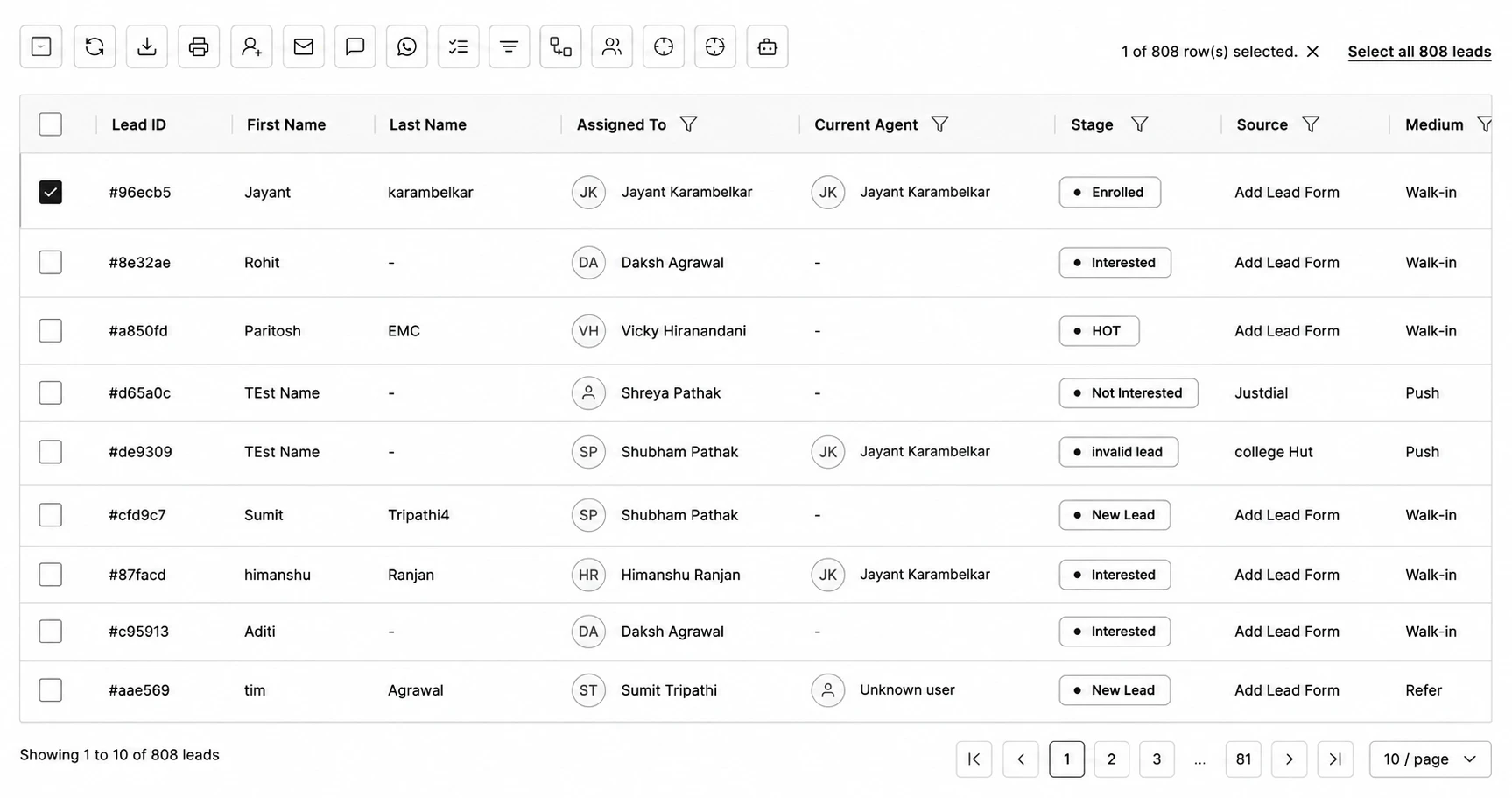
Step 1: Select one or more leads using the checkboxes (or use Select All to grab every lead matching your current filters).
Step 2: Click the icon for the action you want from the bulk actions bar.
Step 3: Confirm in the dialog that opens — it always tells you exactly how many leads are affected before you proceed.
Step 4: The action runs in the background — you don’t have to wait on the page.
Where Each Action Lands
| Bulk actions bar icon (on Leads page) | Lands in Bulk Action Logs as |
|---|---|
| Download selected | Lead Bulk Download |
| Assign to user | Lead Assignment |
| Send email | Bulk Email |
| Send SMS | Bulk SMS |
| Send WhatsApp | Bulk WhatsApp |
| Lead Stage Change | Lead Stage Change |
| Push Leads to Integration | Push Leads |
| Send to Meta CAPI | Meta CAPI |
| Add to retargeting audience | Meta Retargeting / Google Retargeting |
| Transfer to Lead Journey (Raw Leads only) | Lead Bulk Transfer |
| Lead rechurn | Lead Rechurn |