Coupons — How to Use Coupons
Where to Find Assigned Coupons
The Coupons page in the CRM sidebar shows only the coupons that have been assigned to you (by user or group) in Admin. It's a reference list — you can search by name/code and click the copy icon next to a code to copy it, but you can't apply a coupon from this page.
How to Apply a Coupon to an Application Payment
Step 1: Open the student's application payment / fee screen.
Step 2: In the Apply Coupon section, enter the Coupon Code.
Step 3: Click Apply.
Step 4: On success, a green confirmation message appears and the discount is applied to the total. On failure (invalid, expired, or exhausted code), a red error message appears.
How to Apply a Coupon to a Course Fee / Installment Plan
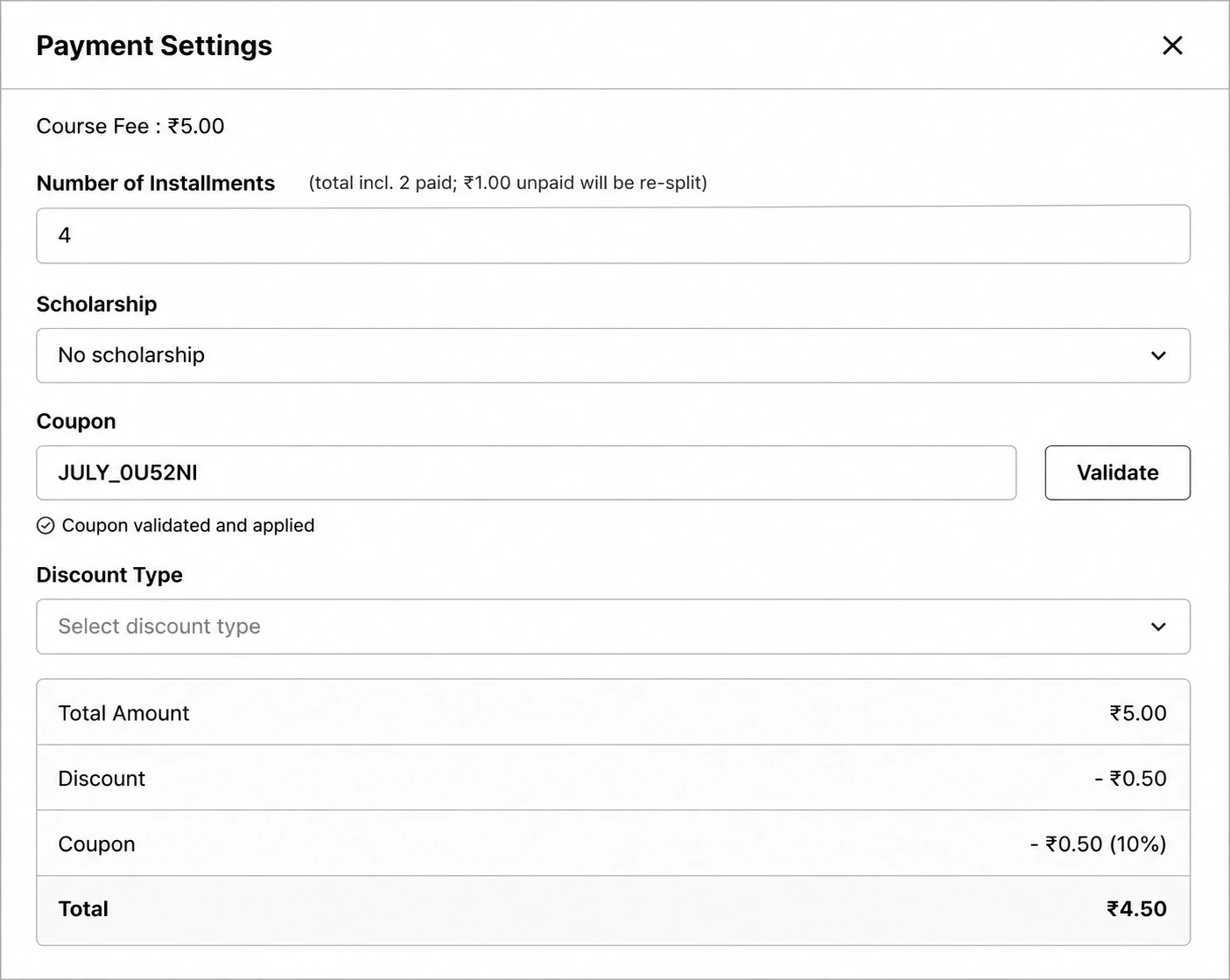
Step 1: Open the lead, go to the Payments tab, and click the Settings (gear) icon to open Payment settings.
Step 2: Under Coupon, enter the code and click Validate.
Step 3: On success, a Coupon line appears in the summary showing the discount, and the Total recalculates.
Step 4: Save the installment plan.