Communications — Email
Email templates use a full drag-and-drop HTML editor, so you can design rich, branded emails rather than plain text.
How to Create an Email Template (Admin)
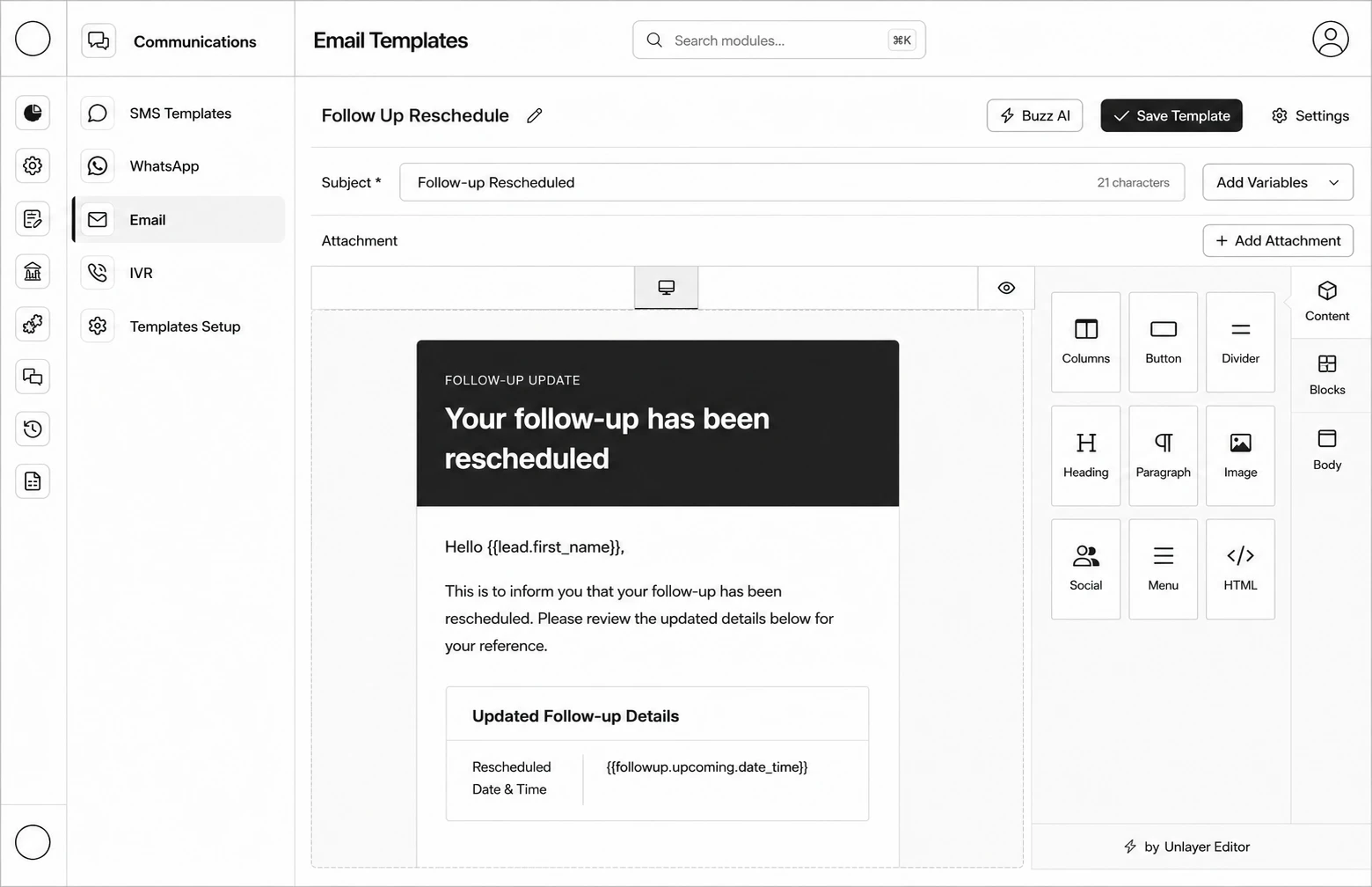
Step 1: Go to Communication → Email. (If no sender email is configured yet, click Email Template Settings first and set your Sender Email, Sender Display Name, and optional Reply-To details.)
Step 2: Click Create Template, enter a Template Name, and continue into the builder.
Step 3: Enter the Subject — use Add Variables to insert merge tags directly into it.
Step 4: (Optional) Click Add Attachment to attach a file.
Step 5: Design the email body in the drag-and-drop Email Editor.
Step 6: If your subject/body use merge tags, click Settings to enter Review Mode and set a Fallback value for each variable (used when the real data is missing).
Step 7: Click Save Template.