Integrations — Provider Integration
Provider Integration lets external lead sources push leads into the CRM (Incoming), or lets the CRM push leads out to a partner CRM/ERP (Outgoing).
What You Can See
The list is filtered by All / Incoming / Outgoing tabs, showing each integration’s source, connected user, and Connected/Disconnected status.
How to Create an Incoming Integration
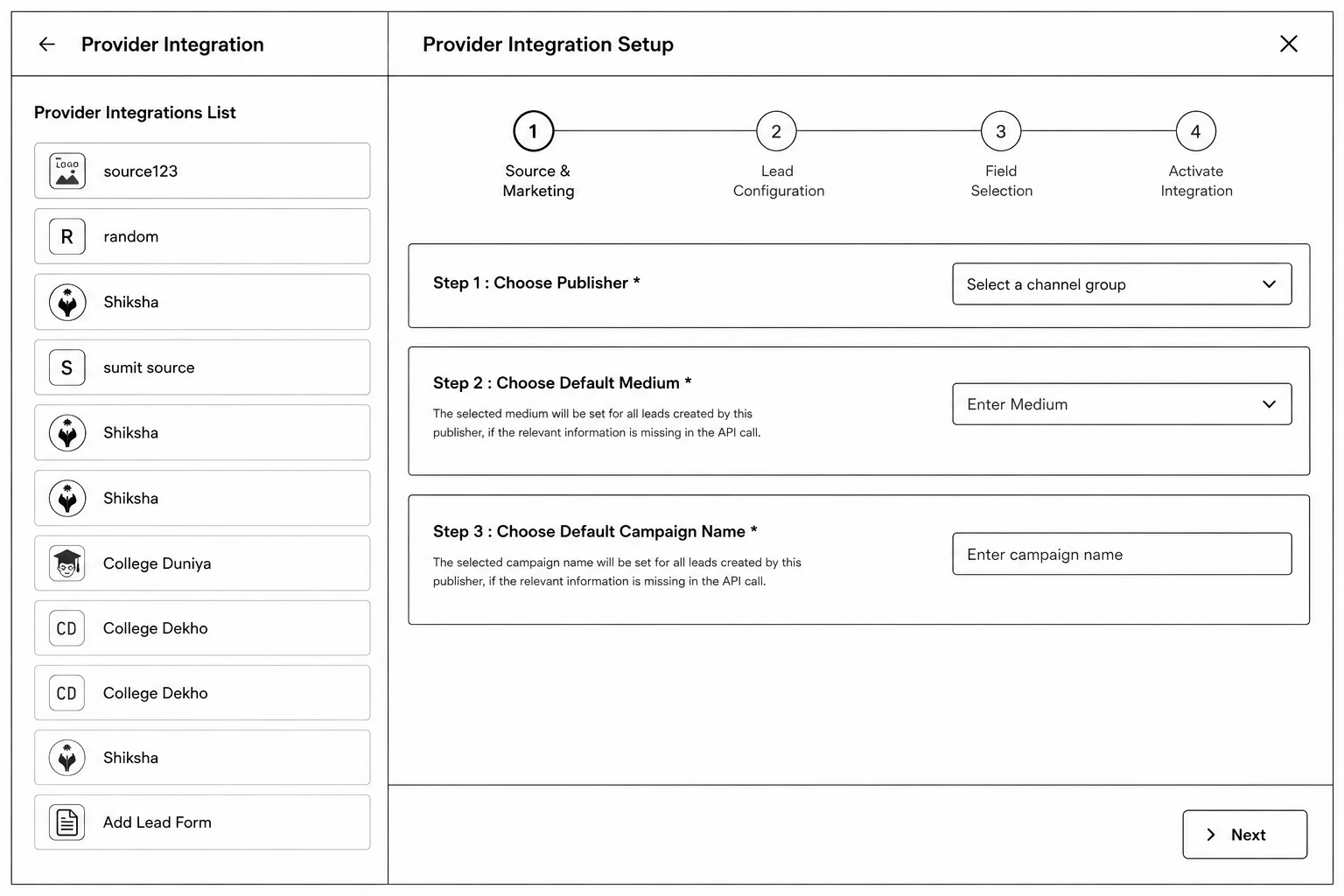
Step 1: Go to Integrations → Provider Integration and click Add Integration.
Step 2 (Source & Marketing): Choose the Publisher, Default Medium, and Default Campaign Name.
Step 3 (Lead Configuration): Set a Lead Cap (Per Day), and toggle Allow Lead Creation Without Taxonomy, Enable Dynamic Medium Capture, and Enable Dynamic Campaign Capture as needed.
Step 4 (Field Selection): Choose which fields the incoming payload can set, and mark any as mandatory for this integration.
Step 5 (Activate Integration): Copy the generated Webhook URL to share with the provider, then turn the integration Active.
Step 6: Click Finish.
How to Create an Outgoing Integration
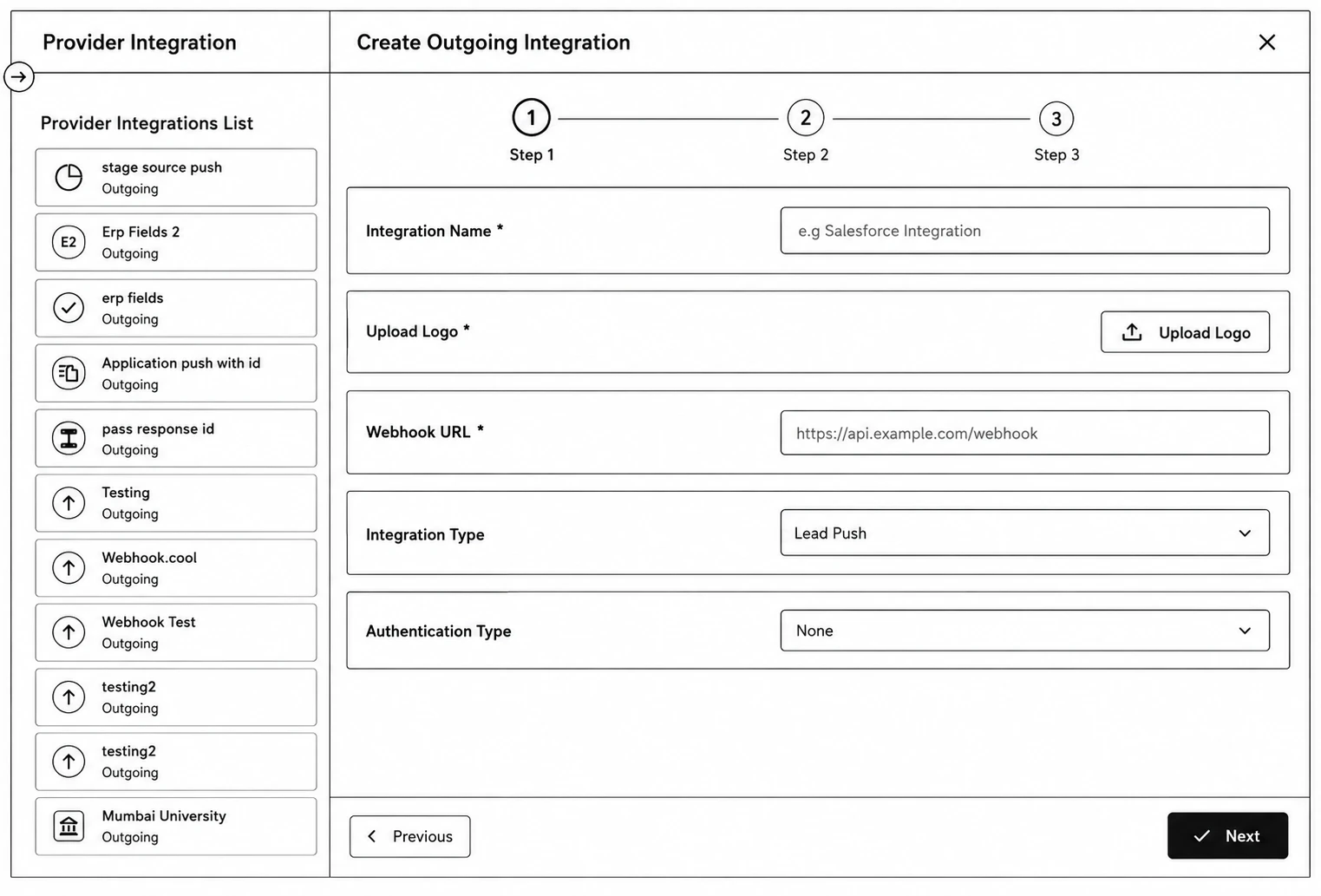
Step 1: On the Outgoing tab, click Add Integration.
Step 2: Enter the Integration Name, upload a Logo, set the Webhook URL, choose the Integration Type (Lead Push / Application Push), and set Authentication Type (None, Bearer Token, Basic Auth, or Custom Headers) with its matching credentials.
Step 3: Map your CRM fields to the destination system’s schema, and configure the response mapping.
Step 4: Set a Rate Limit (Leads per Second) and toggle Activate Integration.
Monitoring: API Details, Fields, and Sync Logs
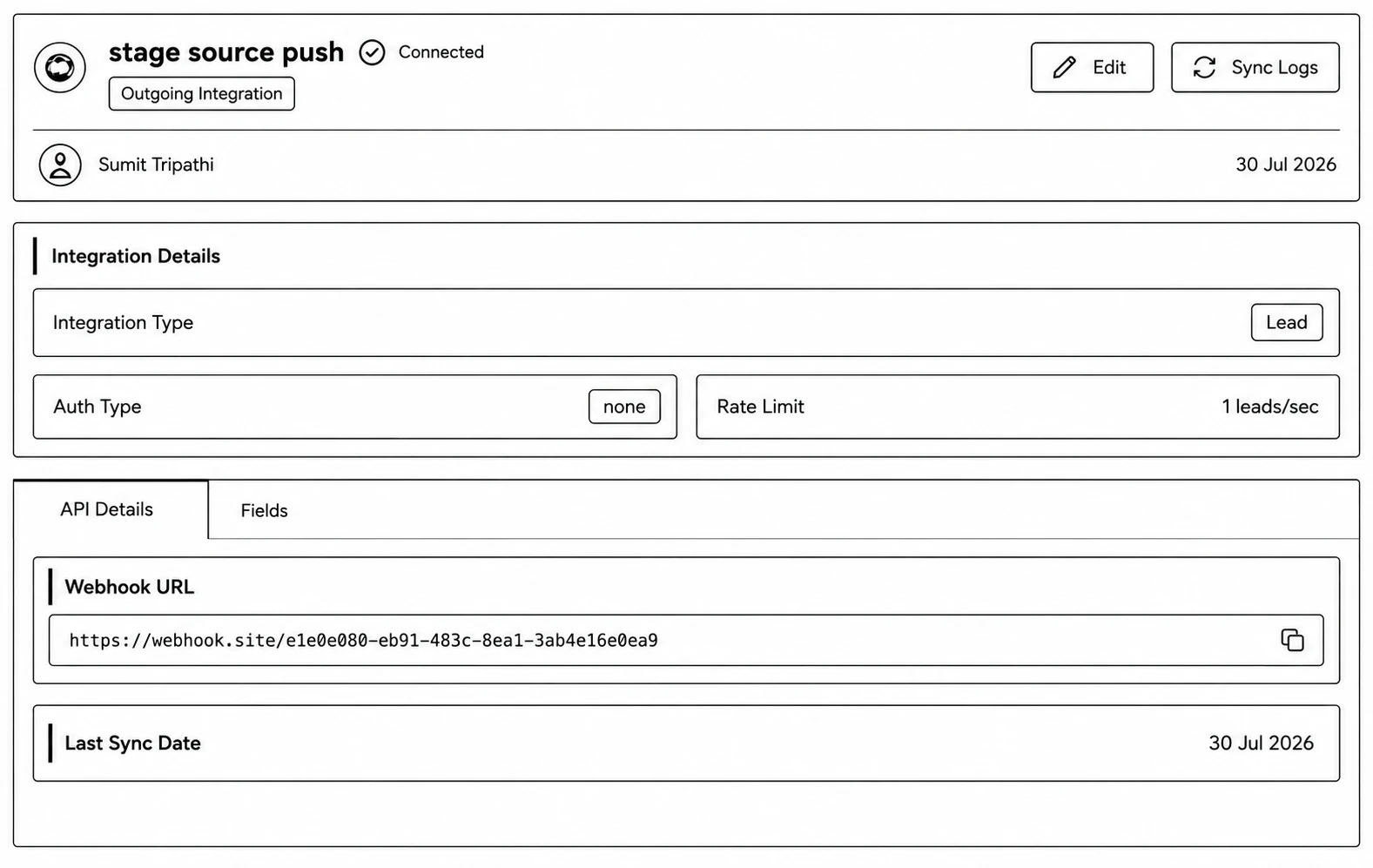
- The API Details tab shows the Webhook URL (with a “Generate New URL” option for incoming), Last Sync Date, and URL History.
- The Fields tab lets you edit which fields are allowed.
- Sync Logs shows every request as a day-grouped timeline, filterable by All Requests / Successful / Failed, with a date range and CSV export. Each entry expands to show the full API Request and API Response.