Forms — Application Form
An Application Form is the full, multi-step admission form a student fills out — richer than an Enquiry Form, supporting grouped fields, tables, payments, and conditional logic.
What You Can See
The Application Form list is filtered by Published Forms / Draft Forms tabs, with each form shown as a card (Title, Description, Published/Modified date, status badge).
How to Create an Application Form
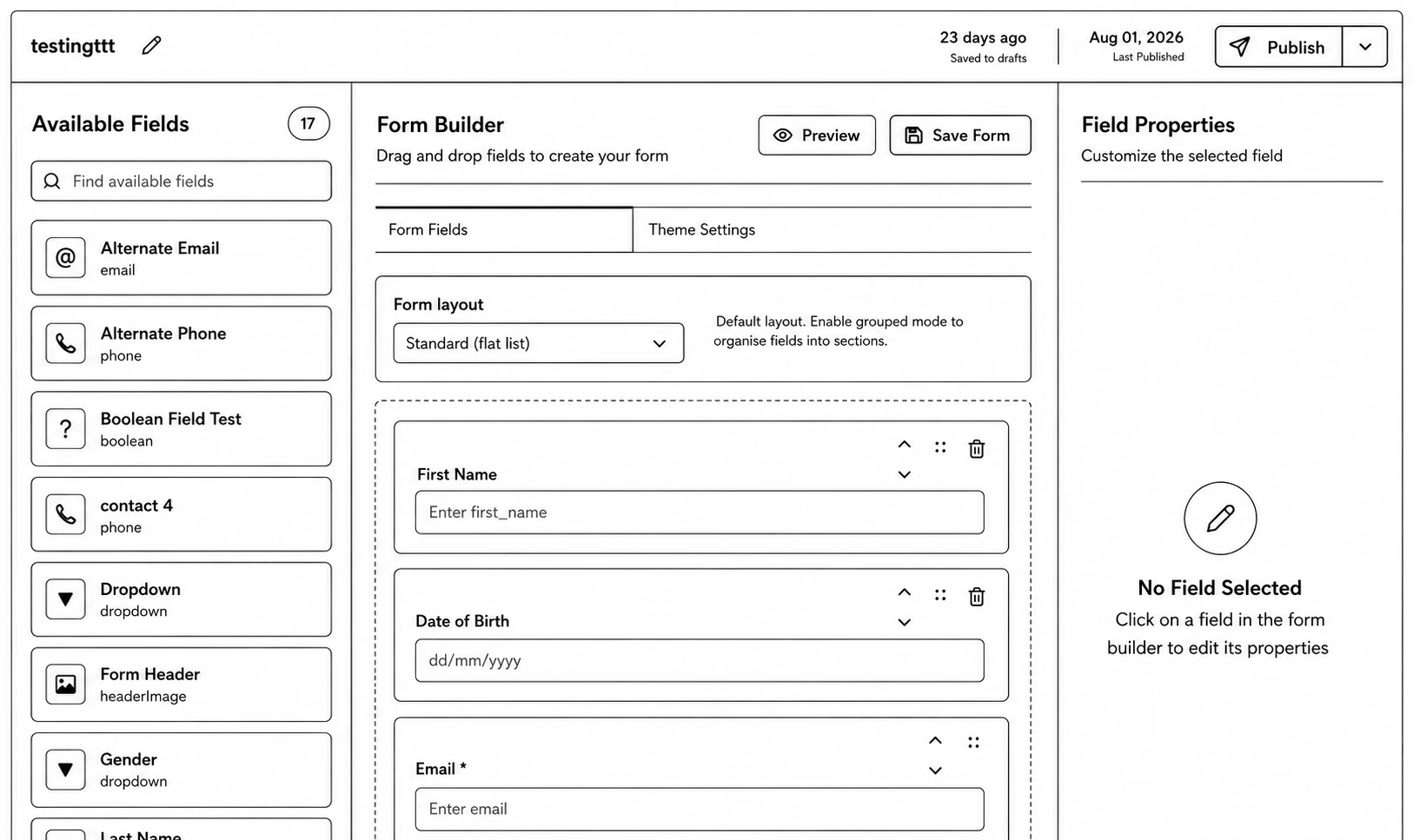
Step 1: Go to Forms → Application Forms and click Create New Application.
Step 2: Enter the Form Title and Description, then click Create Form.
Step 3: In the builder, add Steps to structure the form into sections, then drag fields into each step. Available field types: Taxonomy, Group, Location Selector, File, Select, Label, Payment, Payment Type Two, Checkbox, Table, Education Table, Email, Phone, Inputbox, Number, Date, Address.
Step 4: (Optional) Set up conditional logic — show/hide or require fields based on other answers — using the Form Logic editor, or use the built-in Buzz AI panel to describe the logic in plain English.
Step 5: Click Preview to check the form, then Save Form.
Step 6: From the list page, click Publish, or Generate URLs for a trackable, campaign-tagged link.
Managing Application Forms
- Edit (builder), Preview, Duplicate, Delete, Publish/Unpublish.
- Under the Settings menu on the list page: Application form settings and Application Form Id settings (controls how application IDs are generated/formatted).