Users
The Users module is where you manage everyone who has access to the CRM — counsellors, managers, agents, interviewers, document reviewers, and publishers — along with their roles and reporting structure. From here you can add new users, assign roles and managers, set a default assignee, and suspend or reactivate accounts.
HOW TO ADD A USER
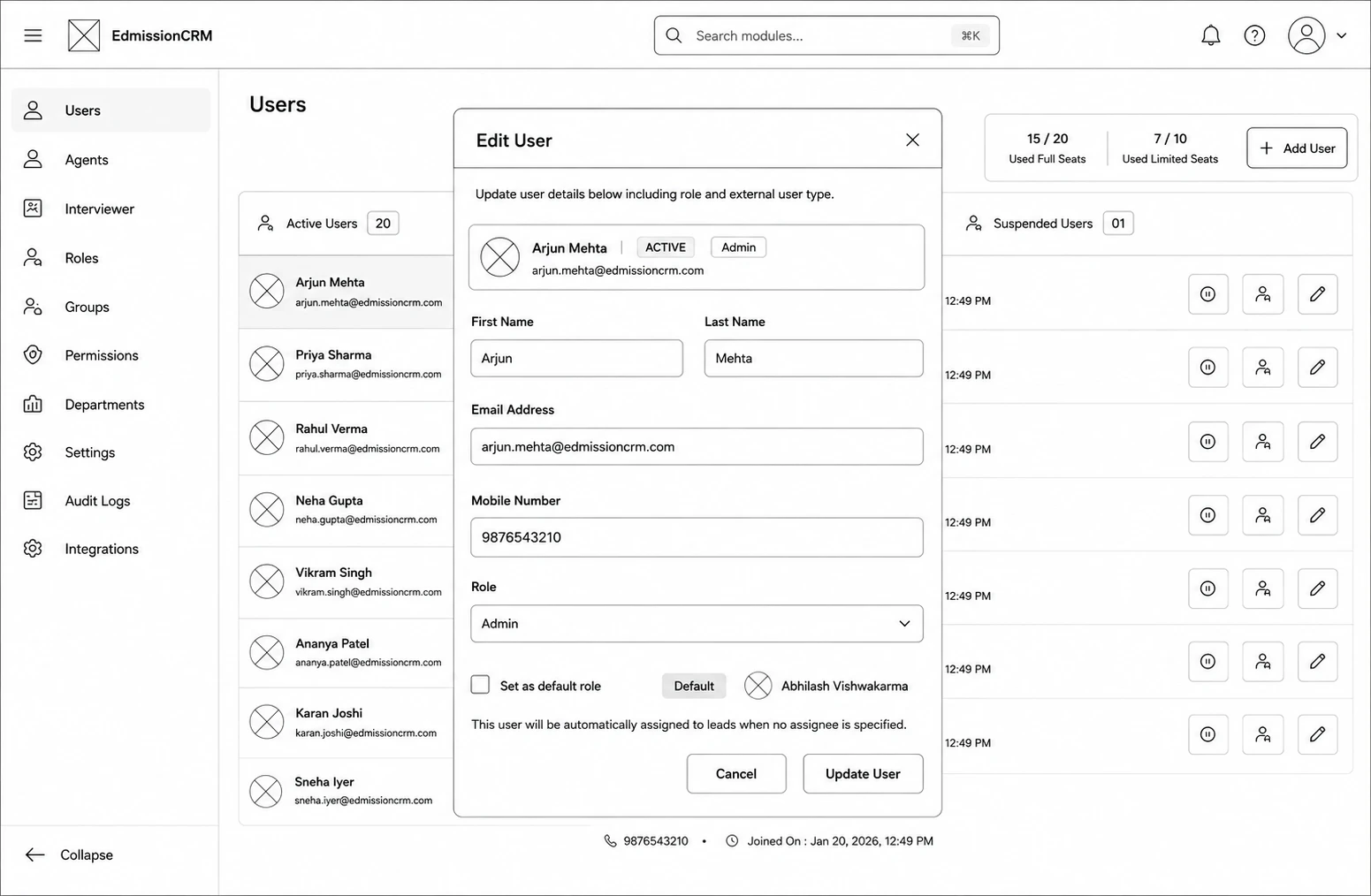
Step 1: Go to Users from the sidebar (under CRM Settings).
Step 2: Click the + Add User button at the top right.
Step 3: Enter the user's First Name and Last Name.
Step 4: Enter their Email Address and Mobile Number.
Step 5: Select the User Type — Internal User (your own team) or External User (publisher, agent, or interviewer).
Step 6: Choose a Role from the dropdown (the available roles change based on the user type selected).
Step 7: For internal users, select a Manager the user will report to. (For a publisher role, select a Publisher Source instead.)
Step 8: (Optional) Tick Set as default role to make this user the automatic assignee for leads with no assignee.
Step 9: Click Add User to save. An activation email is sent to the user to set their password.