Integrations — Ads Integrations
A hub connecting your ad platforms — for lead capture and for retargeting.
Google Ads (Lead Form Webhook)
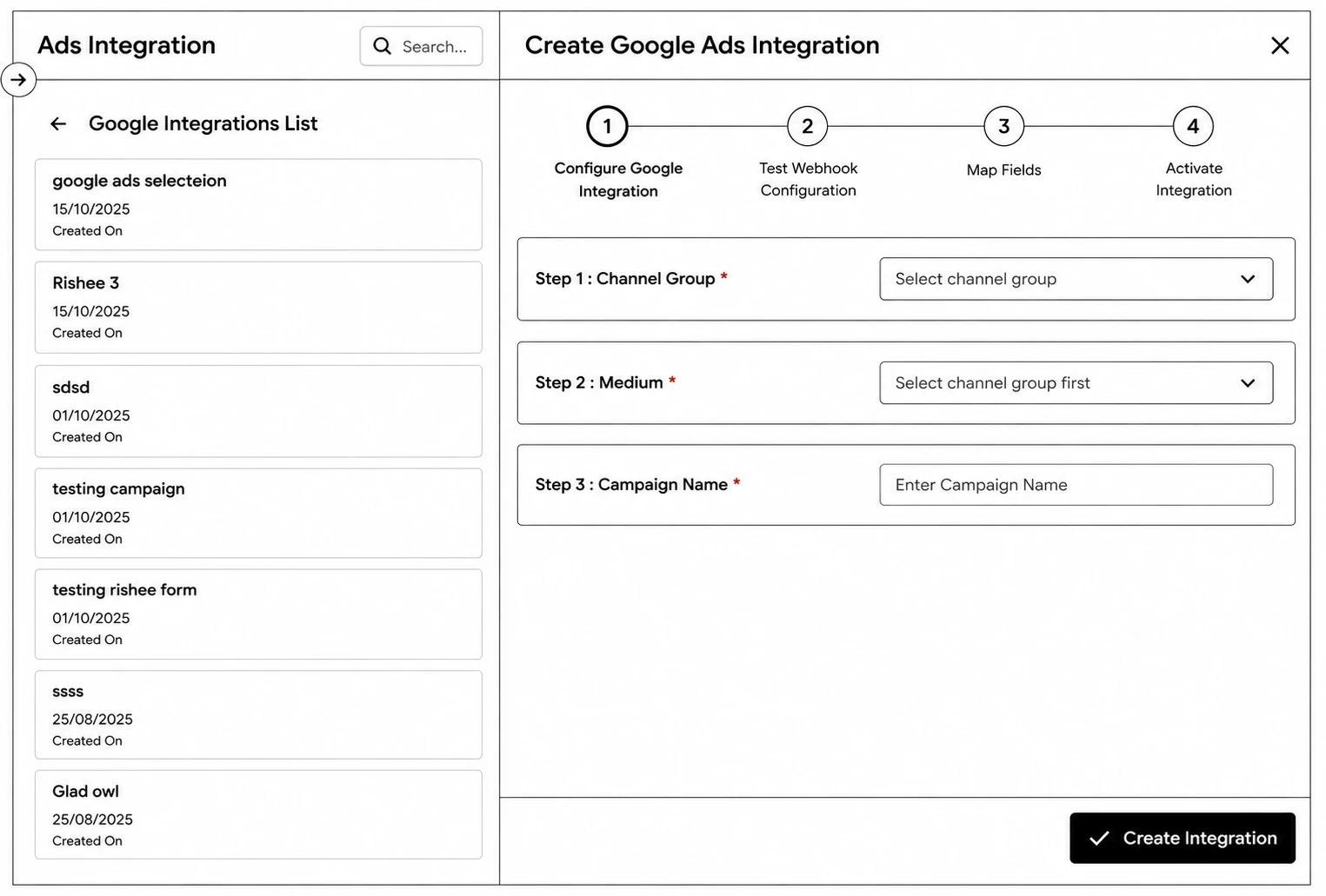
Step 1: Click Create Google Ads Integration, set the Channel Group, Medium, and Campaign Name.
Step 2: Copy the generated Webhook URL into your Google Ads lead form setup, then click Start Listening to test it — the CRM waits for a real test submission from Google.
Step 3: Map each incoming Google Ads column to a CRM field under Map Header Columns.
Step 4: Turn the integration Active.
Meta CAPI (Conversions API)
Step 1: Click Create, enter a Name, your Pixel ID, and your Access Token.
Step 2: Toggle Active — inactive integrations won’t be used to send events.
Facebook (Lead Ads Sync)
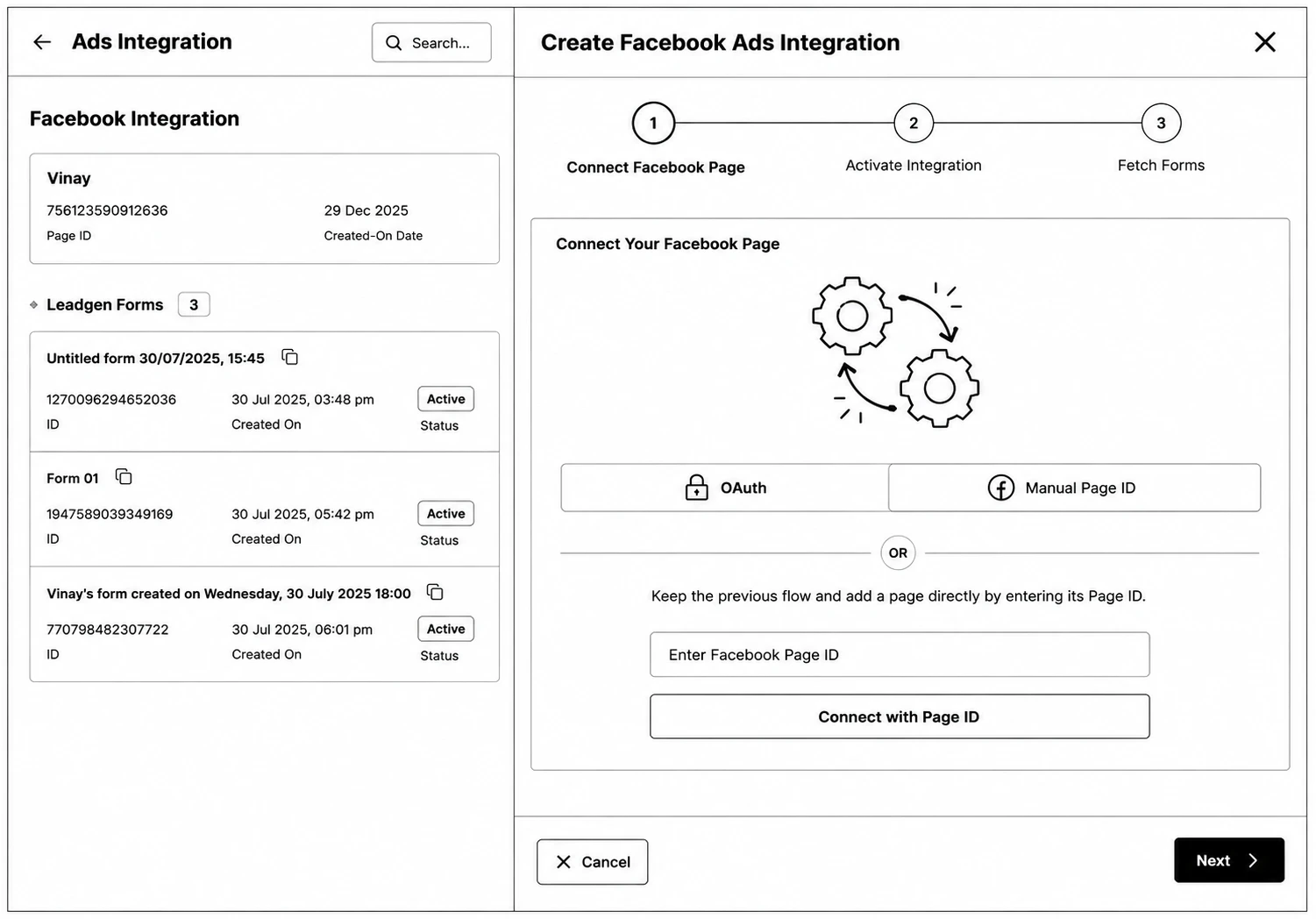
Step 1: Click Create Facebook Ads Integration and connect a Page — either via OAuth, or manually with a Page ID.
Step 2: Turn the integration Active.
Step 3: Click Fetch Forms to pull in the Page’s Leadgen Forms.
Step 4: For each form, open Leadgen Form Settings to set Channel-Source, Medium, Campaign Name, and taxonomy details, then Map Header Columns from Facebook fields to CRM fields.
Step 5: Under Sync Leads, set a Start Date, End Date, and Lead Limit (up to 1000) to pull historical leads in.
Meta Retargeting & Google Ads Retargeting
Step 1: Click Connect Meta Account (or Connect Google Ads) to authenticate.
Step 2: Select the Ad Account (or Customer) to use, and click Sync Ad Accounts/Sync Customers.
Step 3: Check the Readiness panel to confirm the account is connected, selected, and active.
Step 4: Create an Audience with a Name and optional Description, then link it to your ad account. Leads matching that audience automatically sync for retargeting.