Communications — WhatsApp
WhatsApp templates go through Meta's official approval process — a template must be reviewed and approved by WhatsApp before it can be sent to customers.
How to Create a WhatsApp Template (Admin)
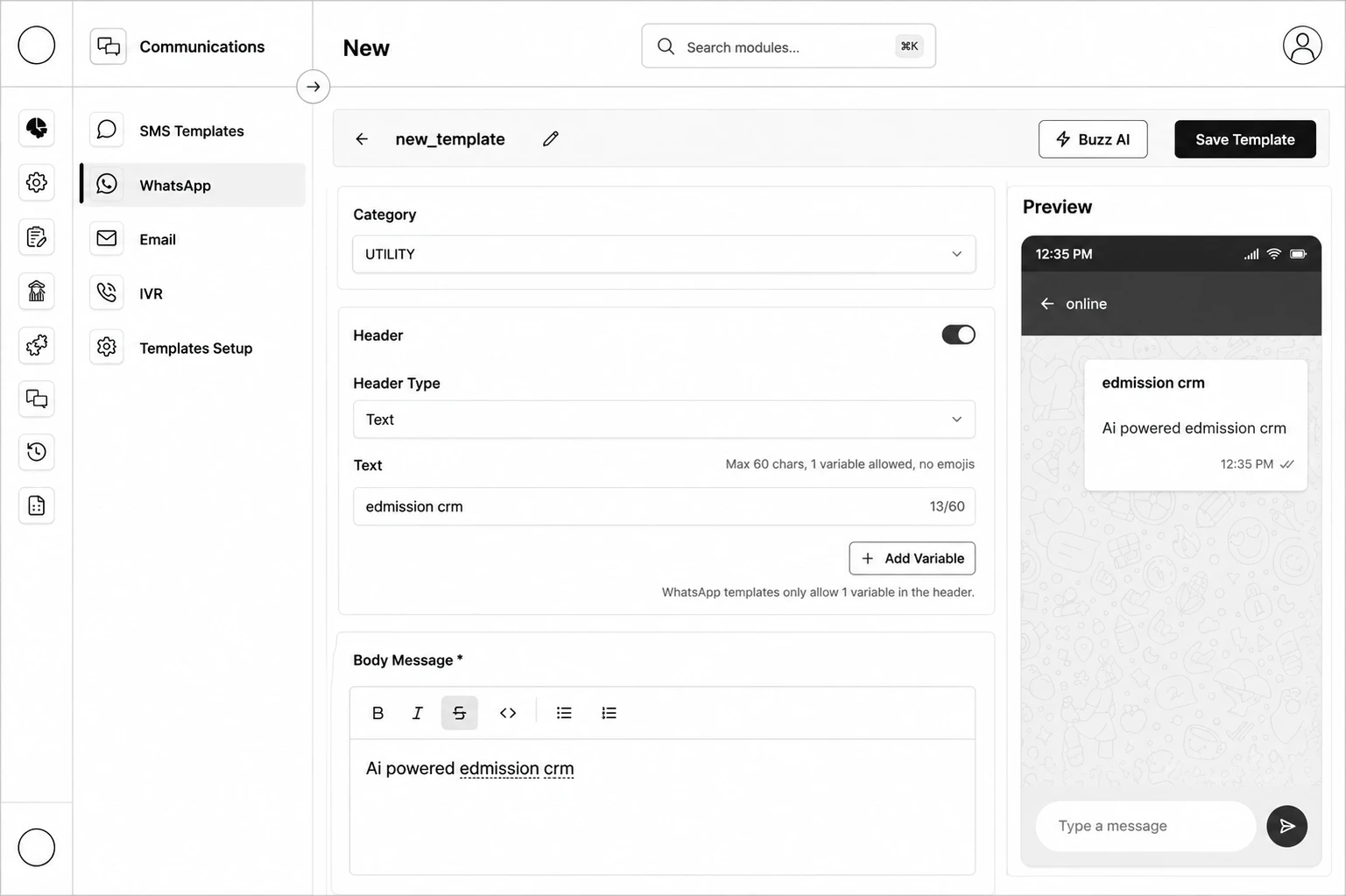
Step 1: Go to Communication → WhatsApp and click Create Template.
Step 2: Enter a template name.
Step 3: Choose a Category — Utility, Marketing, or Service.
Step 4: (Optional) Enable a Header — Text (max 60 characters) or Media (Image/Video/Document, with size/format limits).
Step 5: Write the Body Message (max 1024 characters) using the rich-text toolbar (bold, italic, lists), and click Add Variable to insert placeholders — map each to a lead/application field, and give it a Variable name and Fallback value.
Step 6: (Optional) Enable a Footer (max 60 characters, no variables).
Step 7: (Optional) Add up to 10 Buttons — Quick Reply, Visit Website (max 2), or Call Phone Number (max 1).
Step 8: Check the live Preview on the right.
Step 9: Click Save Template, then Send for Verification to submit it to Meta for approval.