Leads — Notes
A running log of internal notes on the lead.
How to Add a Note
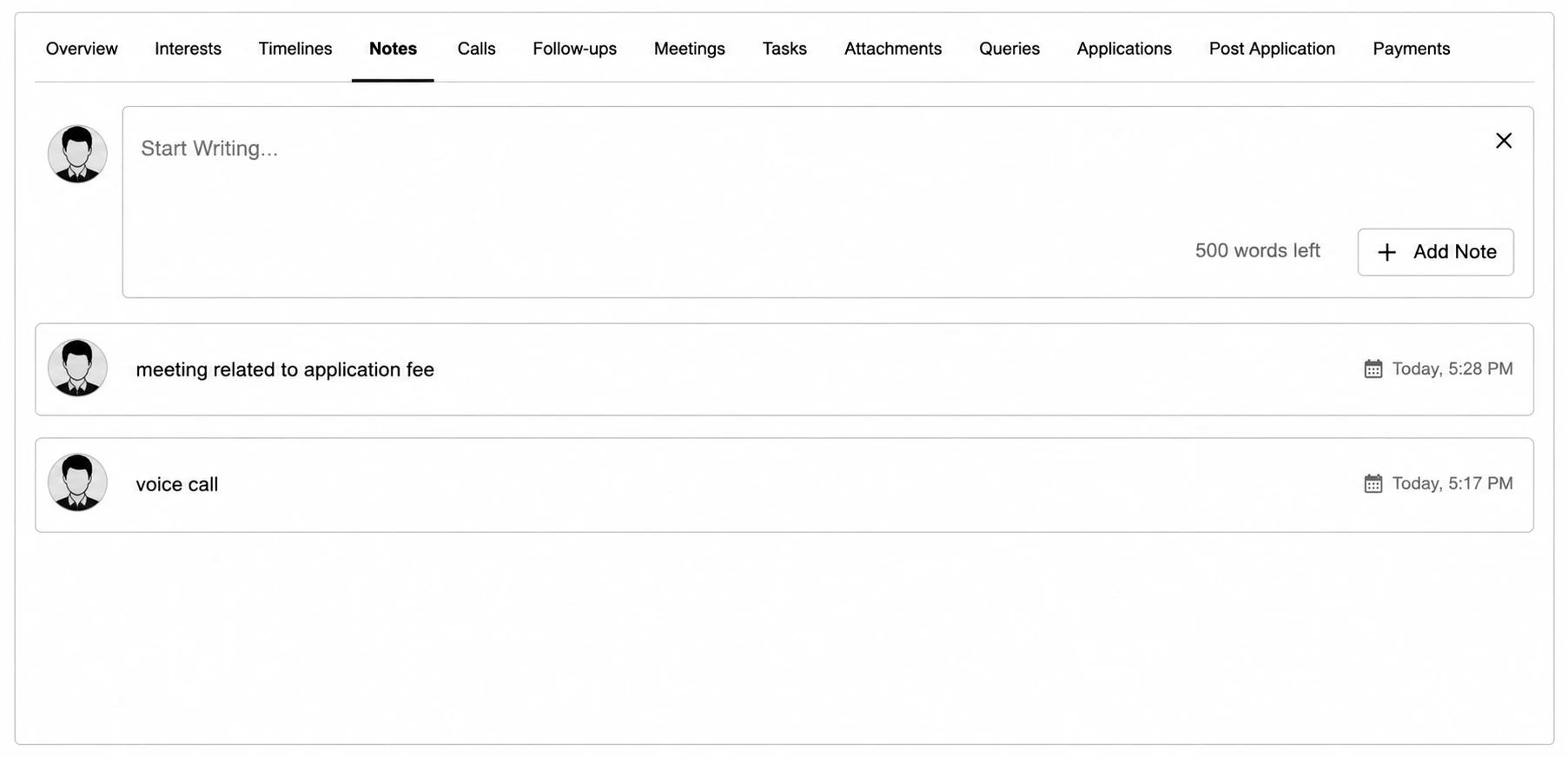
Step 1: Click into the "Start Writing...." box at the top.
Step 2: Type your note (up to 500 characters — a live counter shows how many are left).
Step 3: Press Enter, or click Add Note.
Each note shows the author, a timestamp ("Today, [time]" or the date), and — if it was added as part of a stage change — a colored chip showing the stage transition (previous stage → new stage).