Leads — Stage
Stages and Sub-Stages aren't fixed in the CRM — they're configured per organization in Admin → Stages, so the exact list (and which sub-stages belong to which stage) depends on your org's setup. Check with your admin for your org's specific stage list.
How to Change a Lead's Stage
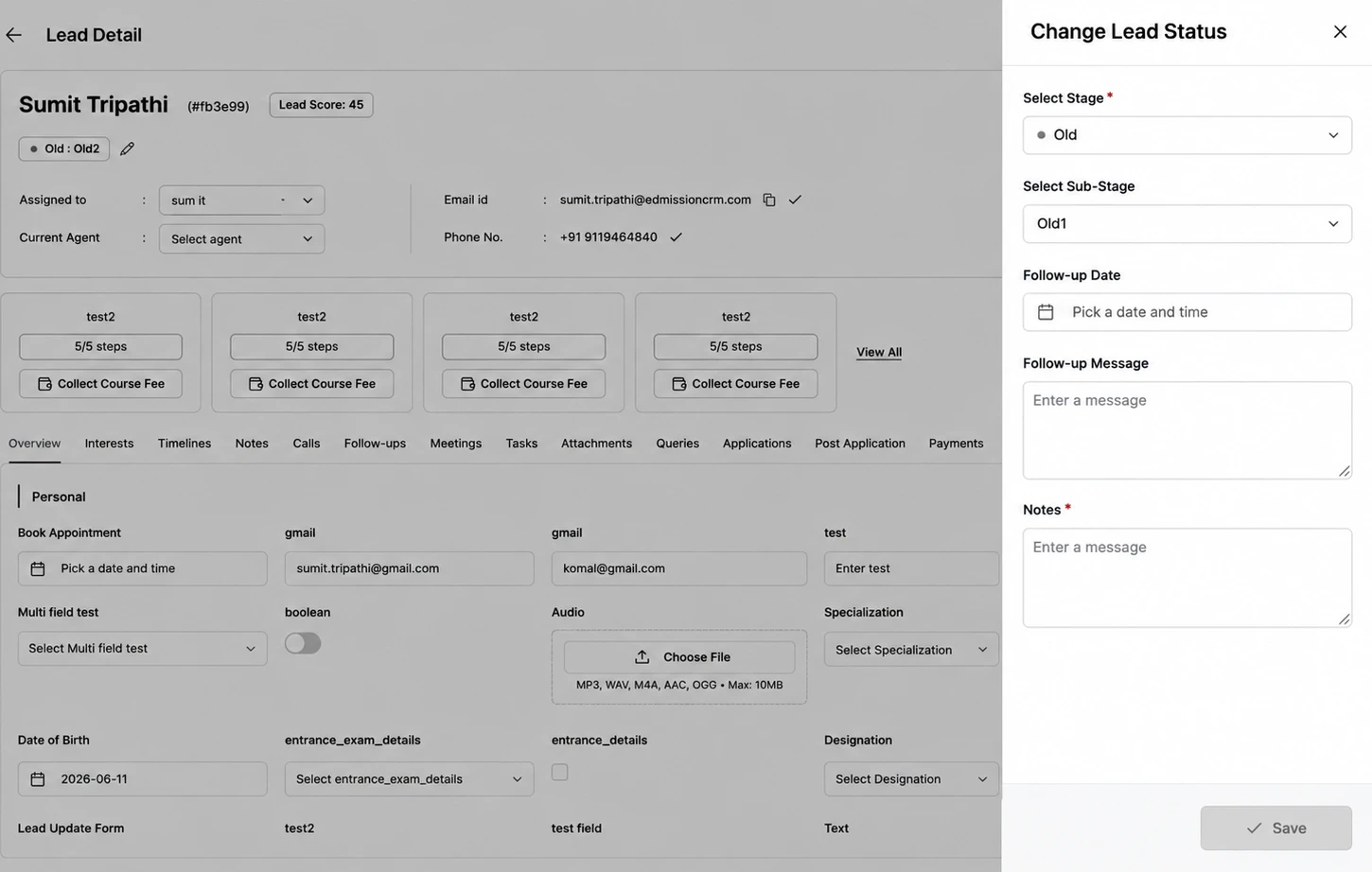
Step 1: Click the colored stage badge at the top of the lead's page.
Step 2: Select the new Stage.
Step 3: Select a Sub-Stage (required if that stage mandates one).
Step 4: Set a Follow-up Date and Follow-up Message (required if that stage requires a follow-up).
Step 5: Add Notes (required if that stage requires one).
Step 6: Fill in any other Required Fields for this Stage the CRM asks for.
Step 7: Click Save.