Interview Slot Booking — Booking Interviews (CRM)
Once slots are published, counsellors book students in directly from the lead's application.
How to Book an Interview
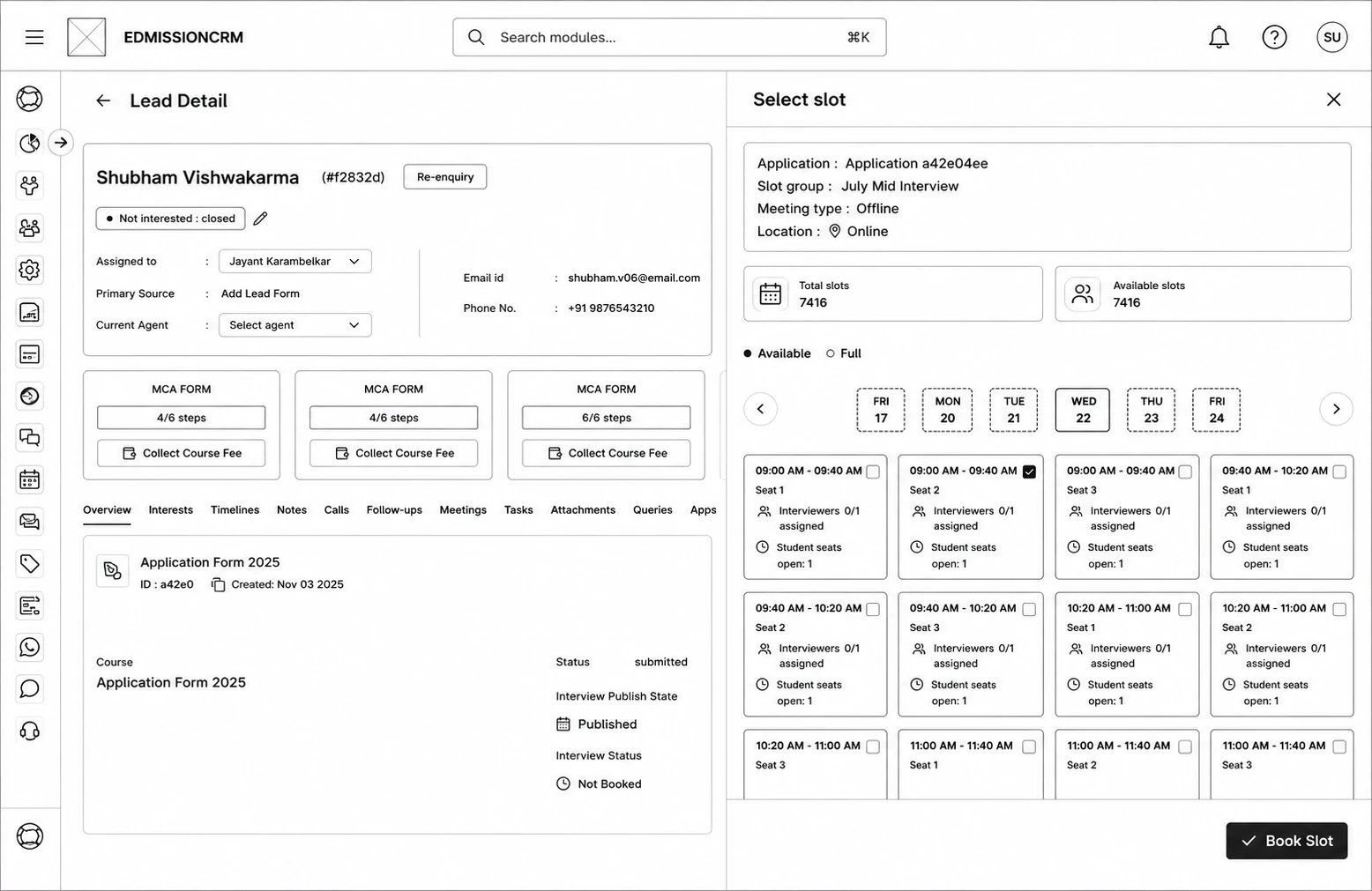
Step 1: Open the lead, go to the Post Applications tab (or the relevant application card).
Step 2: Click Select slot on the application.
Step 3: In the Select slot panel, pick a slot group (if more than one is available), then a date from the date strip, and a time slot from the grid — available slots are marked distinctly from full ones.
Step 4: Click Book Slot.
How to Reschedule or Cancel
Click Reschedule on a booked application to open the same slot picker (labeled Reschedule Slot) and pick a new time.
Click Cancel interview to remove the booking — you'll get a confirmation prompt, since this works even if the slot time has already passed.
Viewing Interview Details
Each application card shows the Interview Publish State, Interview Status, Interview Date & Time, assigned Interviewers, and — once submitted — the Marking Details with interviewer name, submission date, and score breakdown.
Accepting or Rejecting a Result
If Interview Result Rules are enabled, once an interview is Completed, click Accept or Reject in Update Interview Result to confirm the final outcome, add an optional Comment, and save. This overrides any automated rule-generated result.