Buzz AI
Buzz AI is edMission's AI assistant, but it shows up in two different forms depending on where you are:
- Buzz Copilot (CRM) — a chat assistant that helps counsellors work faster on leads: summarizing, answering questions, and even taking actions like scheduling a follow-up.
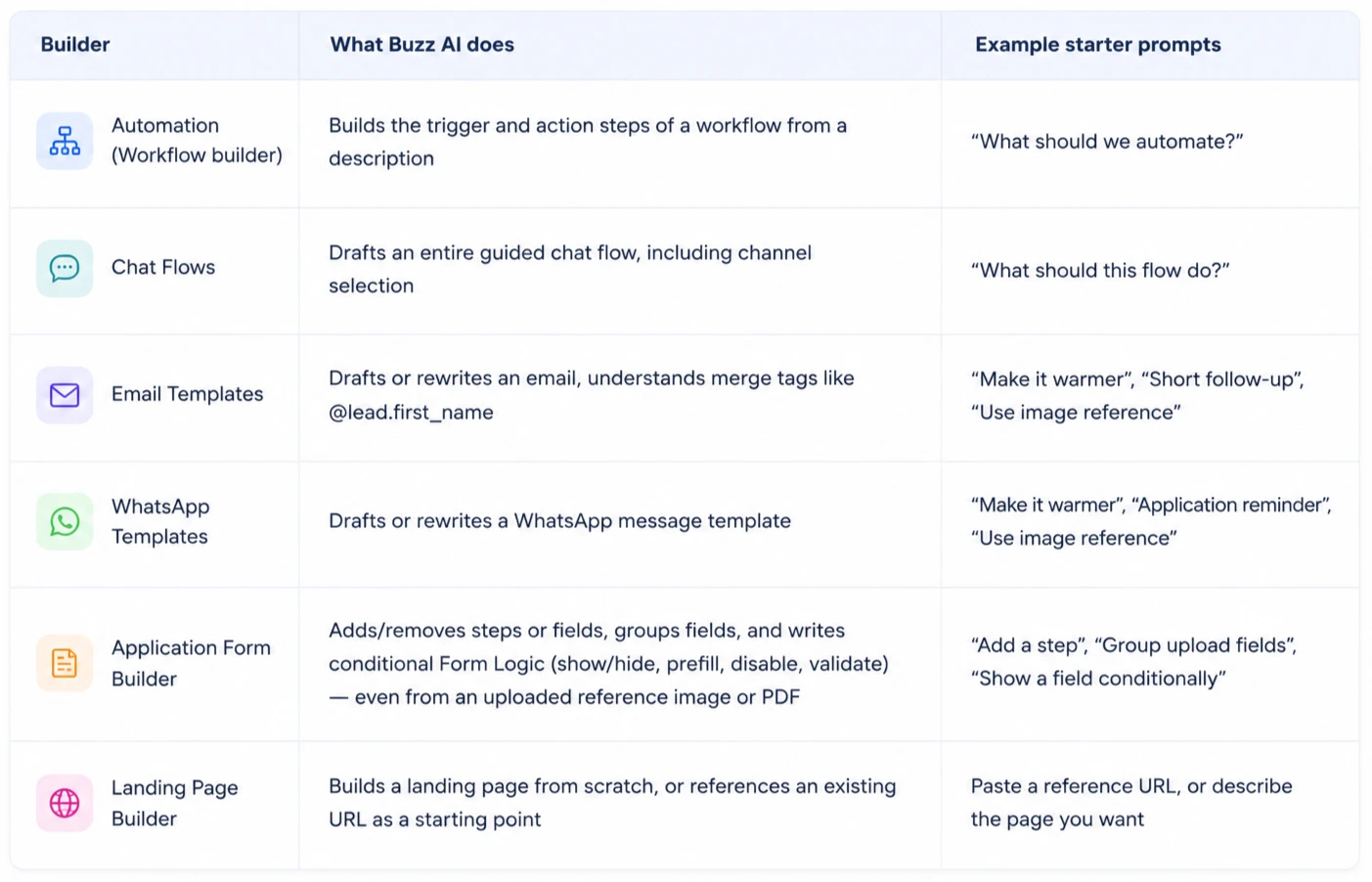
- Buzz AI builders (Admin) — a "describe what you want" assistant embedded inside several content builders (Automation, Chat Flows, Email/WhatsApp templates, Application Forms, Landing Pages) that generates a first draft for you.
Both share the same look and feel — a "Buzz AI" button opening a chat drawer with the greeting "Hey, Buzz AI is here!" — but they do very different jobs.
Buzz Copilot (CRM)
Buzz Copilot is available on every page of the CRM via the Buzz AI button in the header. It's context-aware: open it from inside a lead's page and it knows which lead you're looking at; open it anywhere else and it works across your whole workspace.
How to Use Buzz Copilot
Step 1: Click Buzz AI in the header (lightning bolt icon).
Step 2: Type your question or request, or click one of the suggested starter prompts.
Step 3: If Buzz wants to take an action (not just answer), it shows an approval card — review it and click Apply or Discard.
Step 4: Use @ in the message box to mention a specific Stage, User, Field, or Field value for more precise answers.
Suggested Prompts
| When on a lead's page | When elsewhere in the CRM |
|---|---|
| “Summarize this lead” | “What is overdue?” |
| “What happened last?” | “What are my pending tasks?” |
| “What should I do next?” | “Which leads need attention?” |
What Buzz Copilot Can Do
Answers instantly (no approval needed):
- Look up a lead's details, activities, follow-ups, tasks, notes, and queries
- Tell you your overdue follow-ups and pending tasks
- Draft a message — writes a copyable Email, WhatsApp, or SMS draft you can paste elsewhere
Asks for your approval before acting:
- Create, reschedule, or complete a follow-up (warns you if the lead already has one nearby in time)
- Add a note to a lead
- Create or complete a task
- Apply a filter to your leads list
Asks for approval and is flagged "High risk":
- Change a lead's stage
- Reassign a lead
- Bulk assign, bulk change stage, or bulk transfer leads (shows how many leads will be affected before you confirm)
Buzz AI Builders (Admin Console)
Inside several Admin builders, a Buzz AI panel lets you describe what you want in plain English instead of building it manually. It updates the canvas for you, but nothing is saved or published until you do it yourself — so it's always safe to try.
How to Use a Buzz AI Builder Panel
Step 1: Click Buzz AI inside the builder you're working in.
Step 2: Describe what you want, or click a starter chip.
Step 3: (Form Builder / Landing Page only) Optionally upload a reference image, PDF, or URL for Buzz to work from.
Step 4: Review what Buzz generates on the canvas — undo if it's not right, tweak manually, or keep asking Buzz to refine it.
Step 5: Save/Publish it yourself using the builder's normal Save/Publish button — Buzz never publishes anything on its own.