Leads — Meetings
Meetings schedule an in-person or virtual appointment with a lead (or, from the Calendar, as a standalone event).
How to Add a Meeting (from a Lead)
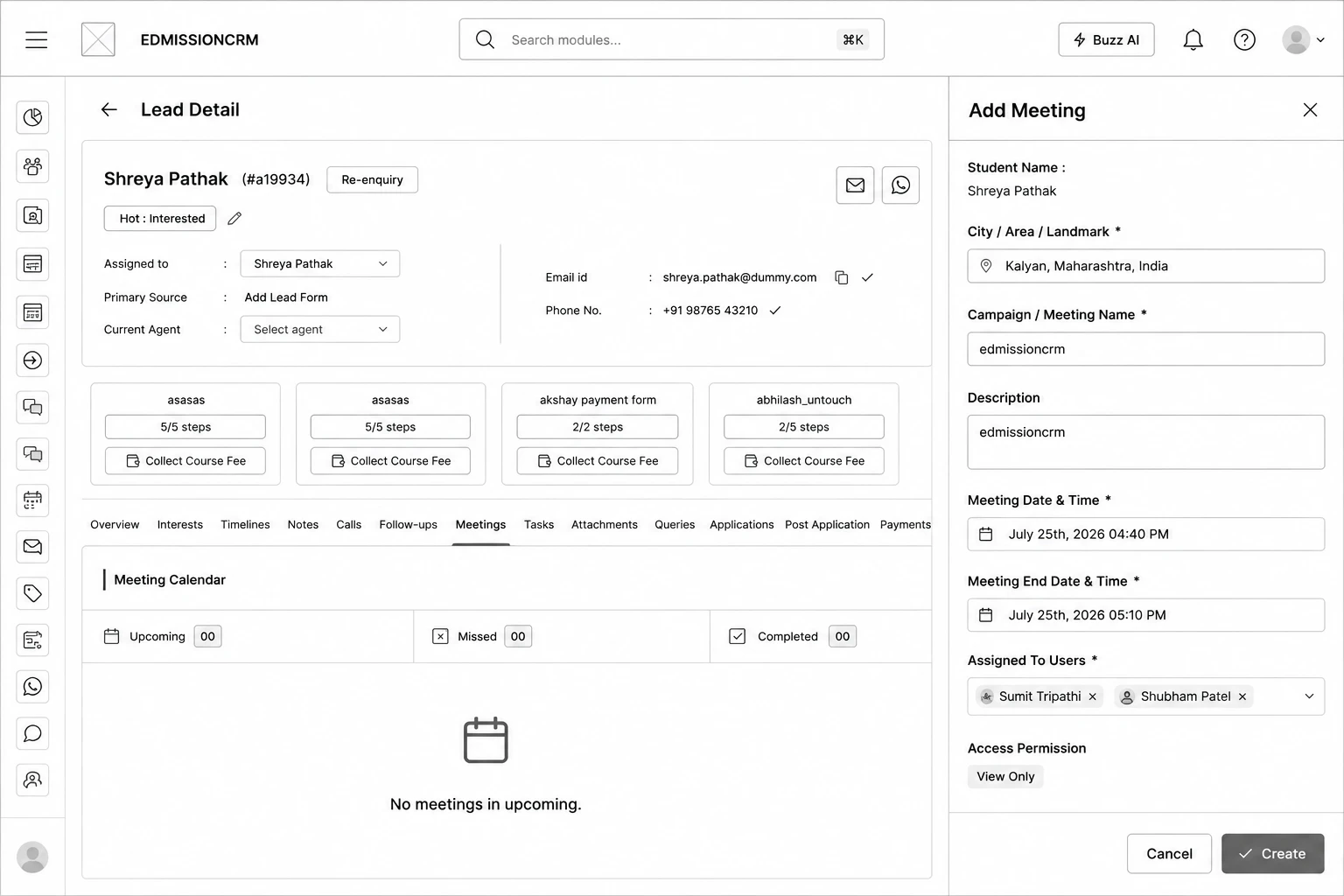
Step 1: Open the lead and click the Meetings tab.
Step 2: Click Add Meeting.
Step 3: Set the Location — search or pick a place on the map.
Step 4: Enter a Campaign / Meeting Name.
Step 5: (Optional) Add a Description.
Step 6: Set the Meeting Date & Time and Meeting End Date & Time (auto-suggested 30 minutes after the start).
Step 7: Choose Assigned To Users — who should attend or own the meeting.
Step 8: Click Create.
How to Add a Meeting (from the Calendar, without a lead)
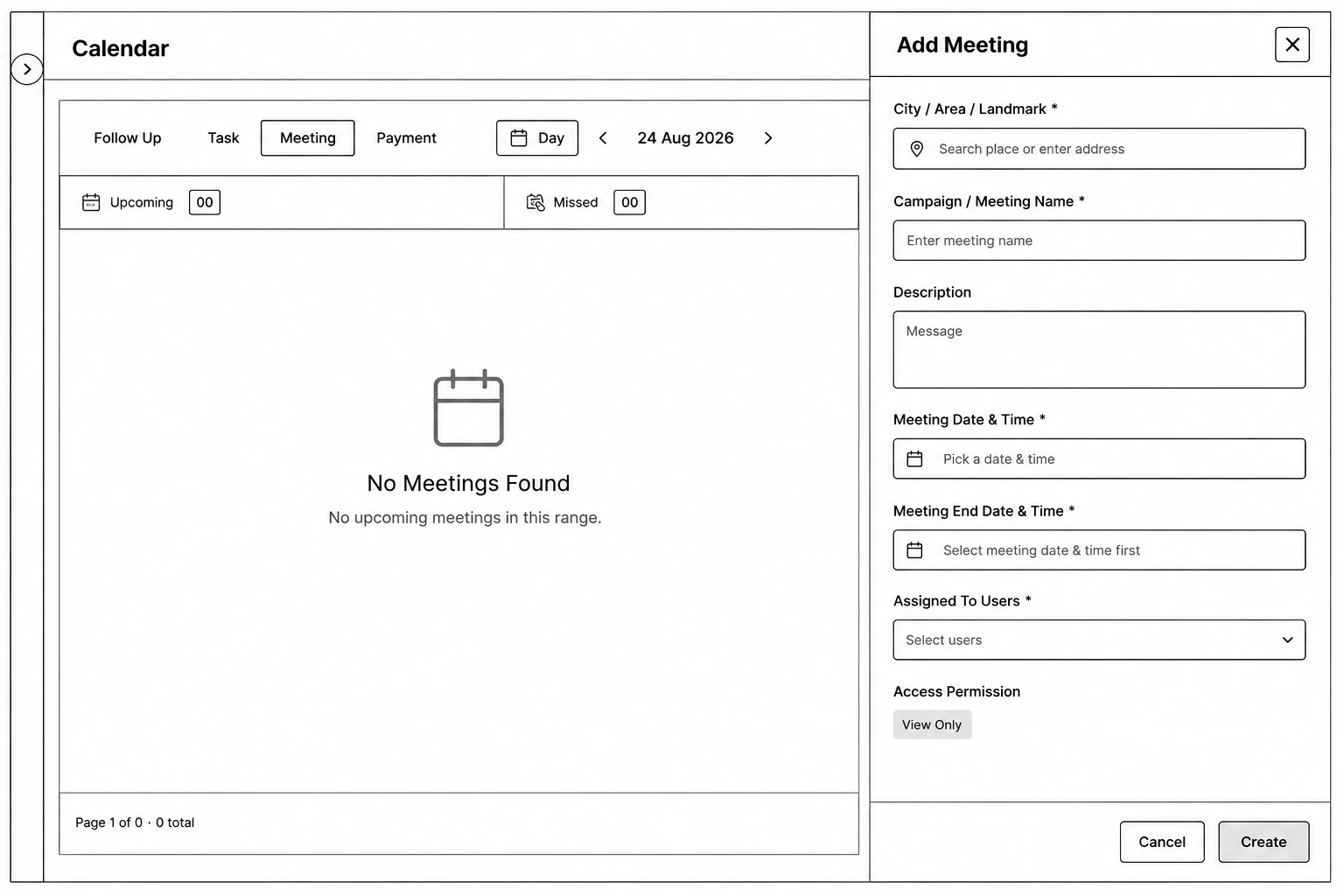
Step 1: Go to Calendar → Meeting tab.
Step 2: Click the + button.
Step 3: Fill in the same fields as above (no Student Name field, since it isn't linked to a lead).
Step 4: Click Create.